TL;DRPrint your 2FA backup codes for email, banking, and any account you might need access to abroad. Tuck them in with your hidden $100 cash reserve. The day your phone is lost or stolen, those codes are the only thing standing between you and being locked out of every account you own.
Two-factor authentication is the security upgrade of the last decade, and a clean source of nightmare scenarios when traveling. The pattern: your phone gets lost, stolen, or broken. You try to log into your email from a borrowed laptop. The service demands a 2FA code from your now-missing phone. You can't get the code. You can't get into your email. Your email is the recovery channel for every other account you own. You're locked out of everything until you get home.
The fix is simple, free, and takes 20 minutes the week before you leave: generate and print backup codes for every account that supports them.
Which accounts to print backup codes for
Anything you might genuinely need to access during the trip:
- Email (Gmail, iCloud, Outlook, whichever is your recovery email)
- Bank and credit card apps (many banks don't offer printable codes and text a code to your phone number instead; ask yours what backup method it accepts before you go)
- Password manager (1Password, Bitwarden, LastPass; for 1Password, print your Emergency Kit, since signing in on a new device asks for your Secret Key)
- Apple Account / Google account (Google gives you 10 printable backup codes; Apple has none, so add a second trusted phone number you can reach while away, such as a family member's)
- Work email / VPN if your job requires access during the trip
- Booking platforms (Booking, Expedia, Airbnb) if you need to make trip changes
- Airline frequent flyer accounts (some require 2FA for changes)
How to generate them
Almost every service that supports 2FA also supports backup codes. The flow is similar across providers:
- Log into the account on a desktop or laptop with internet.
- Navigate to Security → Two-Factor Authentication → Backup Codes (or "Recovery Codes").
- Generate a fresh set. Most services give you 10 single-use codes.
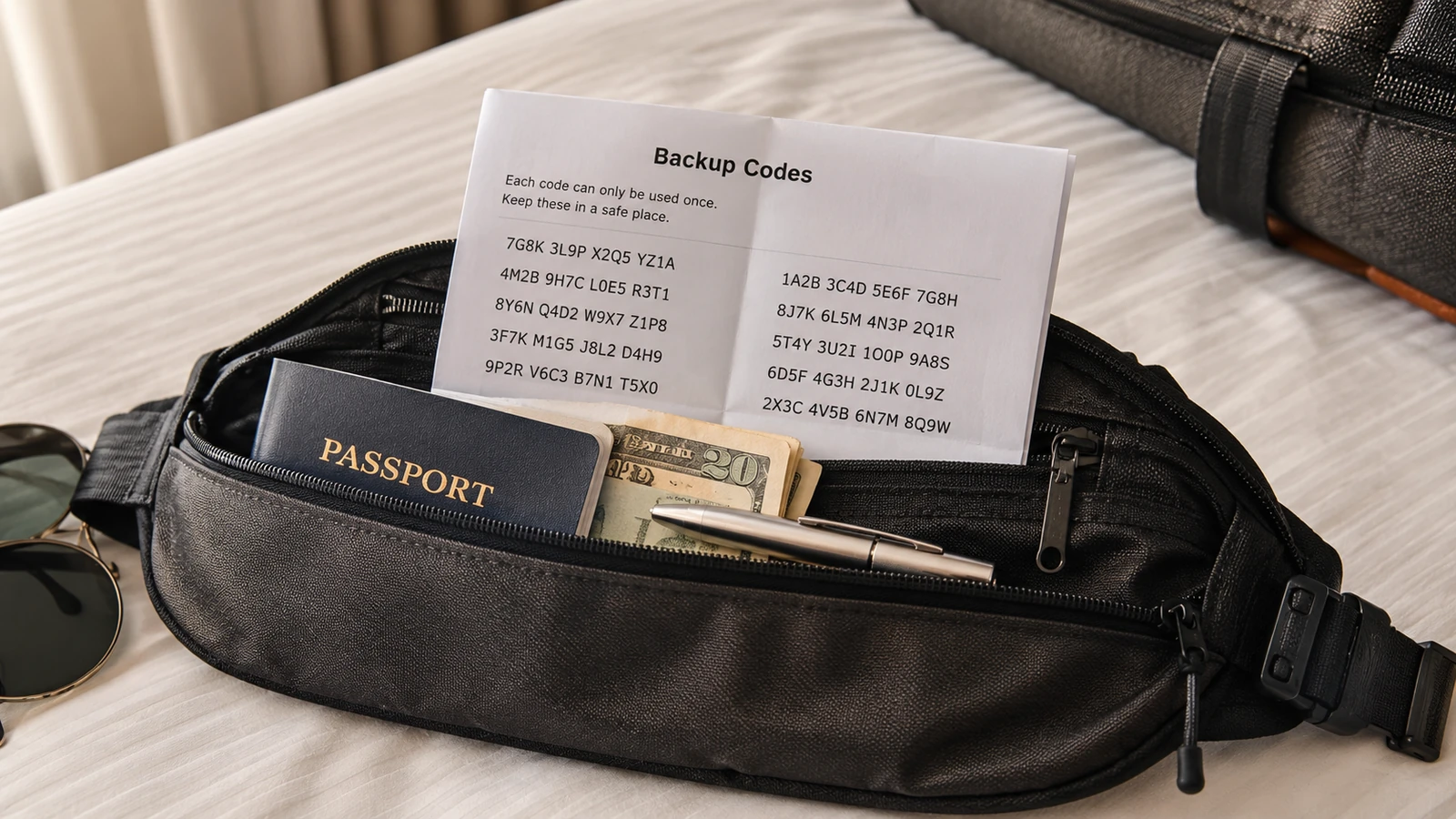
- Print them. Don't rely on a screenshot: it lives on the phone you're trying to recover from, and anyone who gets into your unlocked phone can read it.
- Cut them down to wallet-size. Label clearly: "Gmail backup codes," "Bank backup codes."
- Store them with your hidden $100 cash reserve, somewhere your physical wallet won't be if it's stolen.
Better still: hardware security keys
A YubiKey or other FIDO2 hardware key costs $30–60 and works as a portable 2FA device that doesn't require your phone to be functioning. Plug it in, touch the button, the login succeeds. Works for Gmail, Microsoft, GitHub, many banks, password managers.
If you're a frequent traveler, a hardware key plus a printed backup-codes envelope is the gold standard. The hardware key handles routine 2FA when you arrive at borrowed computers; the printed codes are the final backstop.
Bottom line
20 minutes the week before you leave. A printed envelope tucked with your emergency cash. Zero ongoing cost. The trip you don't lose 48 hours on because you can't access your email is the trip you bought when you printed those codes. Do this once, do it well, and you have a backstop that works for every account you own for years.